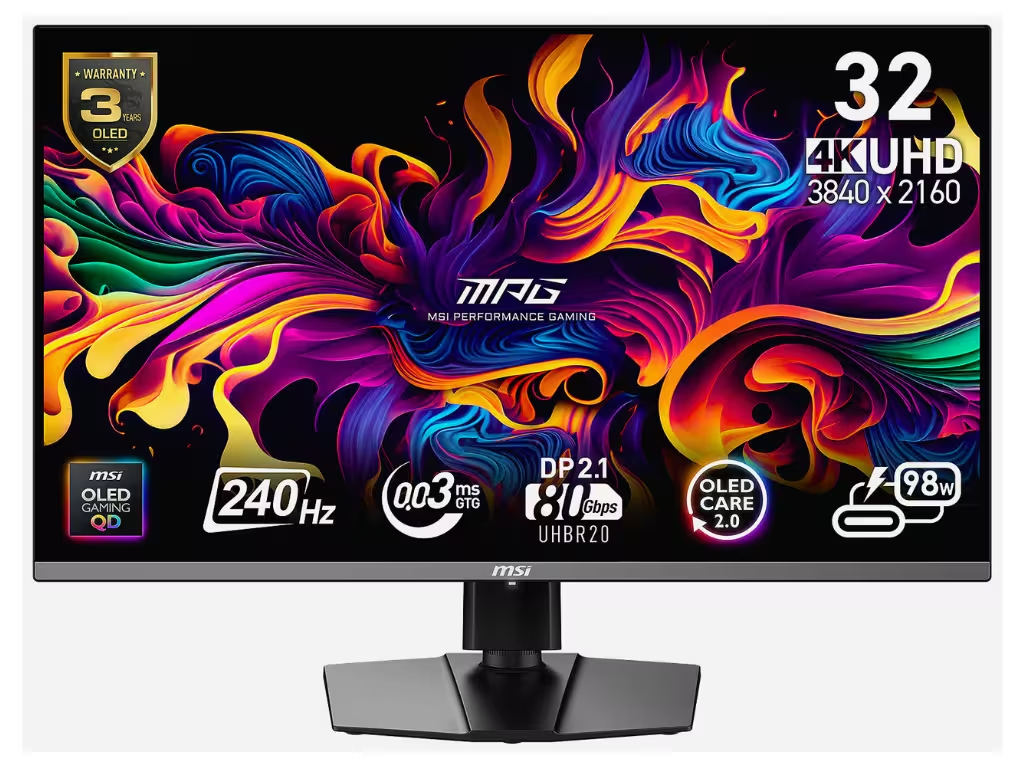
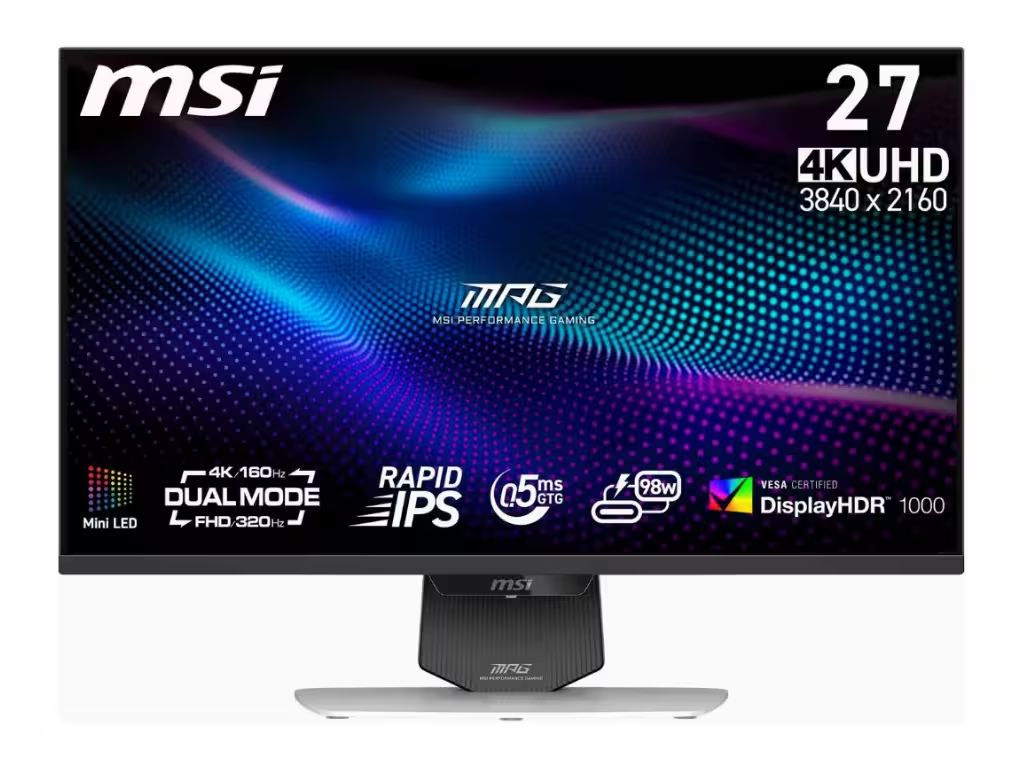

Your monitor is the only part of your setup you look at all day; it shouldn’t be the weakest link. We ignore the inflated “1ms” response time claims and fake HDR ratings to focus on actual color accuracy, panel longevity, and motion clarity that doesn’t rely on image-ruining overdrive settings.
The display market is currently a minefield of misleading marketing. Brands frequently advertise “HDR” on panels that lack the peak brightness to actually produce it, or claim instantaneous response times that only occur under extreme settings that cause massive ghosting. Our approach to monitors and displays is built on visual truth. We test panels based on how they perform out of the box and how they hold up after months of sustained professional or creative use.
We believe a display is more than just a resolution and a refresh rate. It is a precision tool. Whether you are grading color-critical video or tracking high-speed data across a multi-monitor array, the panel’s ability to maintain uniform brightness and color across the entire surface is what defines a “pro” display. We reject the “gamer” aesthetic in favor of structural integrity and optical excellence.
When we evaluate displays, we look past the stickers on the box to find the architectural reality of the panel. Our testing focuses on the metrics that actually impact your eye health and productivity:
In the current landscape, finding a balance between pixel density and performance is key. We evaluate how different screen sizes and resolutions—from 27-inch 1440p staples to ultra-wide productivity monsters—affect your daily ergonomics. A display should reduce eye fatigue, not cause it through PWM flickering or poor anti-reflective coatings. At KWYAB, we ensure that the “window” you look through remains clear, accurate, and built to last. Explore our evaluations to find a display that actually honors the signal it receives.
In most cases, it’s a marketing label. HDR 400 lacks the local dimming and peak brightness required for a true high-dynamic-range experience, often resulting in a “washed out” look rather than better contrast.
OLED offers unmatched contrast and response times, but for static office work (Excel, coding), the risk of “burn-in” and subpixel text fringing is a real concern. We recommend high-end IPS or Mini-LED for heavy text-based work.
This is usually due to poor pixel response times or “ghosting.” The refresh rate is how often the screen updates, but if the pixels can’t change color fast enough, you see a trail behind moving objects.
For creative work and text clarity, 4K is superior. For any task involving fluid motion, a 144Hz or higher refresh rate provides a much smoother experience that reduces eye strain during long sessions.
IPS panels offer superior color accuracy and much wider viewing angles. VA panels have better contrast (deeper blacks) but often suffer from “dark level smearing,” where dark objects leave a trail during motion.
On larger displays (32 inches and up), a curve helps keep the edges of the screen at a consistent focal distance from your eyes, which can reduce fatigue and improve immersion.
Look for height, tilt, and swivel adjustments. A stand that only tilts is ergonomically poor. If the stand is weak, ensure the monitor has a VESA mount so you can use a high-quality monitor arm.
Some monitors dim their backlight by flickering it on and off rapidly (Pulse Width Modulation). This can cause headaches and eye strain even if you can’t see the flicker. We look for “Flicker-Free” certified panels.